The Full Blog Post Body
Embarking on the journey to create your own website is an exciting venture, one that holds the promise of establishing your digital footprint, building a community, or growing your business. In today’s online-centric world, a website is not just a luxury; It is a necessity. However, for many, the initial technical hurdles can feel like a daunting barrier. Terms like “web hosting,” “domain names,” and “CMS” can be intimidating. If you have found yourself searching for a clear, comprehensive path forward, if you want to know HOW TO INSTALL WORDPRESS ON HOSTINGER, you have come to the right place.
This guide is designed to demystify the entire process of getting your website online, holding your hand from the very first click to the final launch of your fully functional WordPress site. We will meticulously walk through every single step, ensuring you not only know what to do but also understand why you are doing it. The core of our journey will be a detailed, step-by-step tutorial on how to install WordPress on Hostinger, a combination revered for its power and simplicity.
By the end of this guide, the entire process of how to install WordPress on Hostinger will seem less like a complex technical chore and more like a straightforward, achievable task. We will cover every detail to ensure your success in learning how to install WordPress on Hostinger effectively.
A Quick Note From the Author: Hi, I’m Jalal, a professional WordPress developer. I’ve built dozens of websites for clients, and I created this guide to give you the same strong start I provide them. If you get stuck or would rather have a professional build a high-converting, custom website for you, feel free to check out my services here. I offer a 80% discount on my development fees for anyone who purchases Hostinger hosting through my links in this article
Table of Contents
Why This Powerful Duo? WordPress and Hostinger Explained
Before we dive into the mechanics of the installation, it is crucial to understand why pairing WordPress with Hostinger is a strategy favored by millions of beginners and experts worldwide.
⭐ Why Users Love Hostinger: Rated 4.9/5 Stars
⭐ Why Users Love WordPress: Rated 4.9/5 Stars
The Unmatched Power of WordPress
WordPress is far more than just a blogging tool; it’s a full-fledged Content Management System (CMS) that powers over 43% of all websites on the internet. This immense popularity is a direct result of its incredible flexibility and ease of use, making the process of how to install WordPress on Hostinger so rewarding. Once you understand how to install WordPress on Hostinger, a world of possibilities opens up.
- User-Friendly for Beginners: Its intuitive interface allows you to create pages, write blog posts, and manage media without any knowledge of code, which is why learning how to install WordPress on Hostinger is the perfect start.
- Limitless Customization with Themes: Thousands of free and premium themes allow you to change your site’s entire design with a few clicks, a key benefit after you’ve figured out how to install WordPress on Hostinger.
- Extended Functionality with Plugins: Plugins effectively allow you to add any feature you can imagine to your website, expanding its capabilities far beyond the initial setup of how to install WordPress on Hostinger.
- Strong SEO Foundations: WordPress is built with clean code and a structure that search engines love, giving you a head start in rankings once you complete the steps for how to install WordPress on Hostinger.
- A Vibrant Global Community: This means help is always available through forums, tutorials, and documentation, a valuable resource at every stage, from learning how to install WordPress on Hostinger to advanced customization.
Hostinger: The Perfect Hosting Partner
While WordPress is the engine, your web hosting is the fuel and the garage that keeps it running smoothly. Hostinger is specifically engineered to make the journey seamless.
- Optimized for WordPress: Their servers are configured to deliver exceptional speed and performance specifically for WordPress sites, ensuring that after you learn how to install WordPress on Hostinger, your site runs at peak efficiency.
- The Simple hPanel: Hostinger’s custom-built control panel is streamlined, intuitive, and designed with the user in mind, making the management of your site straightforward.
- The One-Click WordPress Installer: This is the centerpiece of our guide. Hostinger’s integrated auto-installer automates the entire process, making the task of how to install WordPress on Hostinger a matter of a single click.
- Outstanding Value and Performance: Their plans offer incredible features at an affordable price point, providing exceptional value.
- Global Customer Support: Access to 24/7/365 live chat support means expert help is always available when you need it.
🔍 Compare All Hostinger Plans & Features
Phase 1: Laying the Groundwork – Securing Your Hosting and Domain
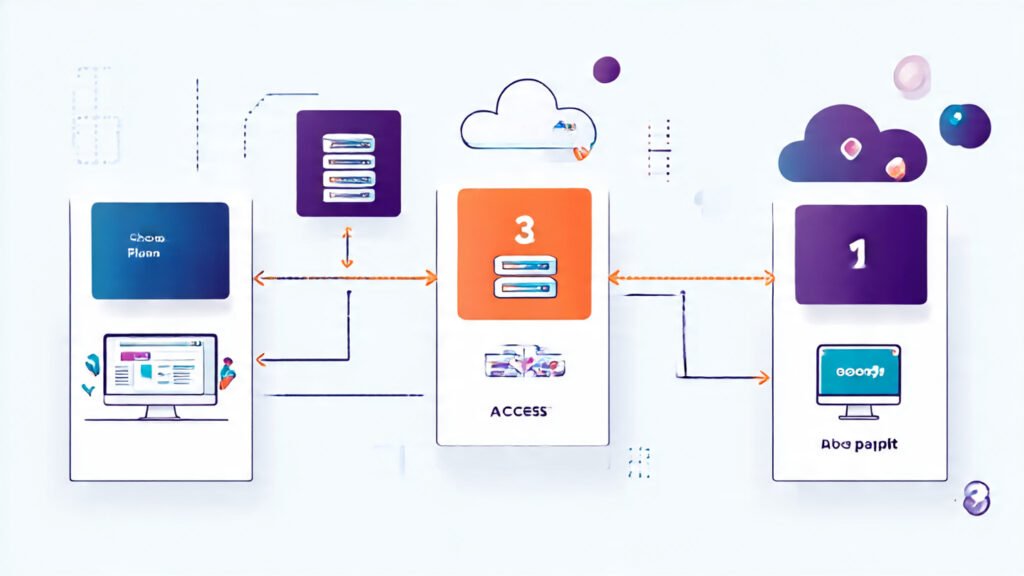
Step 1: Selecting Your Hostinger Plan
Navigating to Hostinger’s website will present you with several hosting options. R the vast majority of new website owners, the Premium Web Hosting plan is the pleasant spot.* A free domain name for one year. Unlimited websites.
- Unlimited SSL certificates.
- Ample storage and bandwidth.
Pro Tip: As a developer, I always recommend the Premium plan. Gives you room to grow a second website (like a client project or a personal blog) without needing a new hosting account.The value is unmatched, especially when you use my link to get an extra 20% discount at checkout on top of any ongoing sales.
💥 Get The Premium Plan with 20% Extra Off
Step 2: Registering Your Domain Name
Your domain name is your digital address. Due to the Hostinger signup process, you will be prompted to claim your free domain.* Keep it Simple and Memorable
- Reflect Your Brand
- Choose the Right Extension
Step 3: Completing the Registration and Accessing panel
After selecting your plan and domain, complete the account creation and payment process. Will then access your control center: panel.
Phase 2: The Core Installation – How To Install WordPress On Hostinger
To complement the written guide, here is a video walkthrough that visually demonstrates the installation process inside Hostinger’s hPanel.
And for our Urdu/Hindi-speaking friends, here is the original-detailed video this guide is based on:
Step 4: Locating and Launching the Auto Installer
Once inside the panel, scroll down to the “Website” section and click the “WordPress” icon under “Auto Installer.”
Step 5: Configuring the WordPress Installation
The auto-installer presents a simple form. Ling it out correctly is crucial for a secure and smooth start. Choose Domain: Choose the domain you registered.
- Website Details: Input your admin email, a unique username, and a strong password. Advanced Options: Select your language and choose starter plugins if desired.
- The Final Click: Hit “Install”!
✨ Install WordPress on Hostinger in 1-Click Now
Phase 3: Post-Installation Mastery – Configuring Your New Website

Your website is technically live, but it is currently a blank canvas. The S phase is about transforming it into a polished, secure, and functional site.
Step 6: Logging Into Your WordPress Dashboard
Go to yourdomain.com/wp-admin.Er your username and password. Come to your command center!
Step 7: Essential Security and SEO Configuration
- Permalinks (Crucial for SEO): Go to Settings > Permalinks and select “Post name.”
- WordPress Updates: Regularly check Dashboard > Updates.
Step 8: Selecting and Customizing Your Theme
Navigate to Appearance > Themes. Can install and activate a new theme, then customize it to match your brand.
NONENeed a Professional Design?** If customizing a theme feels overwhelming, remember I offer custom website design services. [Cod]Contact me for a free quote and mention you used my Hostinger link for 50% off development fees](https://jalaldigital.com/how-to-create-an-ecommerce-website-with-wordpress/).
Step 9: Installing Must-Have Plugins
Go to Plugins > Add New.
- An SEO Plugin (Rank Math or Yoast SEO)
- A Security Plugin (Wordfence Security)
- Anonymous: Backup Plugin (Updraft Plus)
- Analysis: Caching Plugin (Lite Speed Cache)
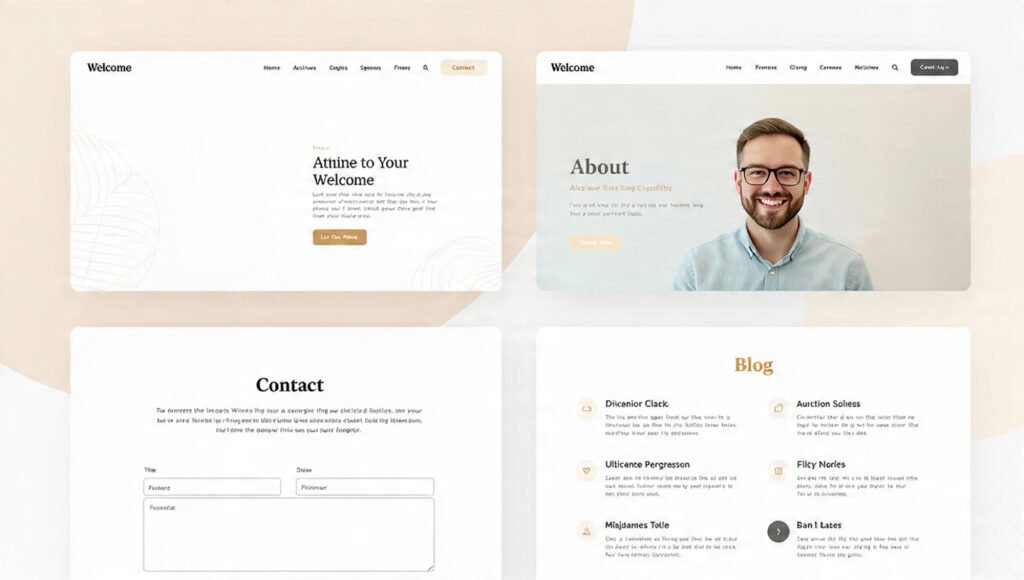
Step 10: Creating Your Core Website Pages
Go to Pages > Add New.
- Homepage
- About Page
- Contact Page
- Blog Page
Taking Your Website to the Next Level
Once your basic website is up and running, you might be thinking about turning it into a full-fledged online store. The great news is that WordPress and Hostinger are perfectly capable of handling e-commerce. I have written a detailed, step-by-step guide on how to do exactly that.
🛒 Ready to Sell Online? Learn How to Create an E-commerce Website with WordPress
Frequently Asked Questions (FAQs)
Q1: Is Hostinger the perfect choice for beginners learning how to install WordPress?
A: Absolutely. With its 4.9/5 user rating, simplified hPanel, and one-click installer, Hostinger is specifically designed to make the entire process of how to install WordPress on Hostinger effortless for anyone, even with zero technical experience.
Q2: Can I upgrade my Hostinger plan later?
A: Yes, you can upgrade your plan at any time with just a few clicks. Your data will be migrated seamlessly by their system, so your site remains uninterrupted as it grows.
Q3: What is the 20% extra discount?
A: When you use my specific affiliate link in this article, an automatic 20% extra discount is applied on top of any sale price at checkout. This exclusive offer is a thank-you for readers of this guide on how to install WordPress on Hostinger.
Q4: I’ve installed WordPress, but my site doesn’t look professional. Can you help?
A: Of course! This is exactly what I do. As a professional WordPress developer, I specialize in building custom, high-converting websites. Get in touch for a free consultation and an 80% discount on my services when you use my Hostinger link to master how to install WordPress on Hostinger.
Q5: Is WordPress really free?
A: Yes, the WordPress software itself is free and open-source. You only pay for hosting (like Hostinger) and a domain name, making it a very cost-effective solution.
Troubleshooting Common Installation Hiccups
- The “Error Establishing a Database Connection”: This is often resolved by re-installing WordPress via the Hostinger auto-installer, ensuring all database details are correct.
- “White Screen of Death”: This is typically caused by a plugin or theme conflict. Deactivate your recently installed plugins via the File Manager in your hPanel to identify the culprit.
- Forgotten Password: Use the “Lost your password?” link on your WordPress login page (
yoursite.com/wp-admin).
Conclusion: Your Digital Foundation is Complete
You have done it. You have successfully navigated the entire process and mastered how to install WordPress on Hostinger. What was once a collection of abstract concepts is now a tangible, live website under your control. The successful completion of the steps for how to install WordPress on Hostinger is a significant milestone. However, this is not the end, but a magnificent beginning. The technical foundation is laid; the canvas is primed. Now, the real work—and the real joy—begins. With the knowledge of how to install WordPress on Hostinger firmly in your grasp, you are now ready to create, build, and grow your powerful online presence.
🎉 Launch Your Website Today with Hostinger! Having 20% Extra Discount
A Note on Affiliate Links & My Services
Disclaimer & Transparency
I want to be completely transparent with you, my valued reader. This comprehensive guide is designed to provide you with the most detailed and helpful information available on the web regarding the process of how to install WordPress on Hostinger. To support the continued creation of such in-depth, free resources, this article contains affiliate links for Hostinger, the hosting provider I use and trust.
This means if you decide to purchase a hosting plan through my links, I may earn a small commission at no additional cost to you. This financial support is what allows me to dedicate the many hours required to research, test, and write these extensive tutorials. My primary goal is to empower you with knowledge, and I only ever recommend tools and services that I have personally vetted and believe will offer you a seamless and powerful experience as you learn how to install WordPress on Hostinger. Your trust is paramount, and I am committed to maintaining it by providing honest, unbiased advice throughout your journey.
Beyond the Installation: Let Me Build Your Professional Website
Mastering the technical steps of how to install WordPress on Hostinger is a fantastic and empowering first achievement. However, I fully understand that your ultimate goal is likely not just to have a website, but to have a successful online presence—one that captivates your audience, builds your brand, and achieves your business objectives. The process of how to install WordPress on Hostinger is just the foundation; the real magic happens in the strategic design, development, and optimization that follow.
This is where my professional services can provide immense value. As an experienced WordPress developer, I specialize in transforming the basic installation you create after learning how to install WordPress on Hostinger into a completely custom, high-converting digital asset. While the initial setup gets you a blank canvas, I bring the vision, artistry, and technical expertise to paint a masterpiece. My development process goes far beyond simply applying a pre-made theme. I focus on creating a unique user experience that is tailored to your specific audience and business goals. Every element, from the layout and color scheme to the typography and interactive features, is carefully crafted to reinforce your brand identity and guide visitors toward taking action.
Furthermore, I ensure that your site is built for performance and visibility. A slow website will drive visitors away, and a site that search engines can’t properly index will remain hidden. I implement advanced speed optimization techniques, clean and standards-compliant code, and on-page SEO best practices right from the start. This ensures that the website we build together not only looks stunning but also loads in the blink of an eye and ranks well on Google, driving organic traffic to your business. Whether you need a sophisticated corporate website, an elegant portfolio, a dynamic blog, or a full-featured online store, I have the skills and experience to deliver a product that exceeds your expectations.
To show my appreciation for you using my guide to learn how to install WordPress on Hostinger, I would like to extend a special offer. If you purchase your Hostinger hosting plan using my affiliate link and are interested in my professional development services, I will provide you with a significant discount on the total project cost. This is my way of saying thank you for your trust and for supporting my work. Let’s move beyond the basics and build a powerful online presence that truly represents your vision and drives real results.